WatchList Tool - Configuring Columns
WatchList columns are configured in the OCXProperties dialog box. A column can be configured to show WatchList specific attributes or any point configuration property, CVS record property, or facility attribute. The notification message can be static text, dynamic text, or a combination. Dynamic text strings are built using tokens. For more information regarding tokens, see Using Text Tokens.
The WatchList specific attributes are contained in the "Special" attribute category. This category contains items such as the WatchList limits and timer value. The attribute named Buttons requires scripting. When a user clicks the Buttons cell in Run mode (the text in the cell is defined on the ActiveX page in the property sheet), an event named EventRowButtonClicked is fired.
To Add or Remove WatchList Columns
- Using CygNet Studio in Edit mode, locate the Standard Tools palette, click the WatchList tool icon, then click on the TheView. This places the tool on TheView.
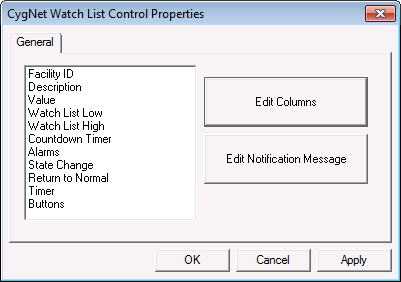
- Click the (OCXProperties) property on the ActiveX page in the object’s Property Sheet.
- Click the Edit Columns button.
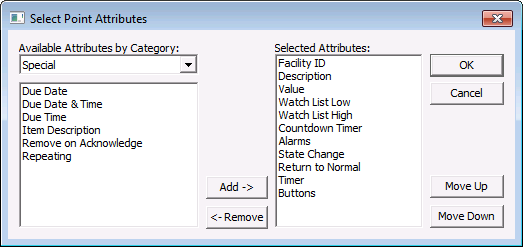
- Use the Add and Remove buttons to move items to/from the Available Attributes by Category to the Selected Attributes boxes.
- The columns are displayed in the order they are listed in the Selected Attributes box. To move an item, select it in the list and use the Move Up and Move Down buttons to reorder it.
|
Watchlist Tool - Edit Columns |
|
Selected Attributes |